Artículos del Blog
Tutorial de Metrica Nexus 2.0: ¡La guía completa paso a paso!

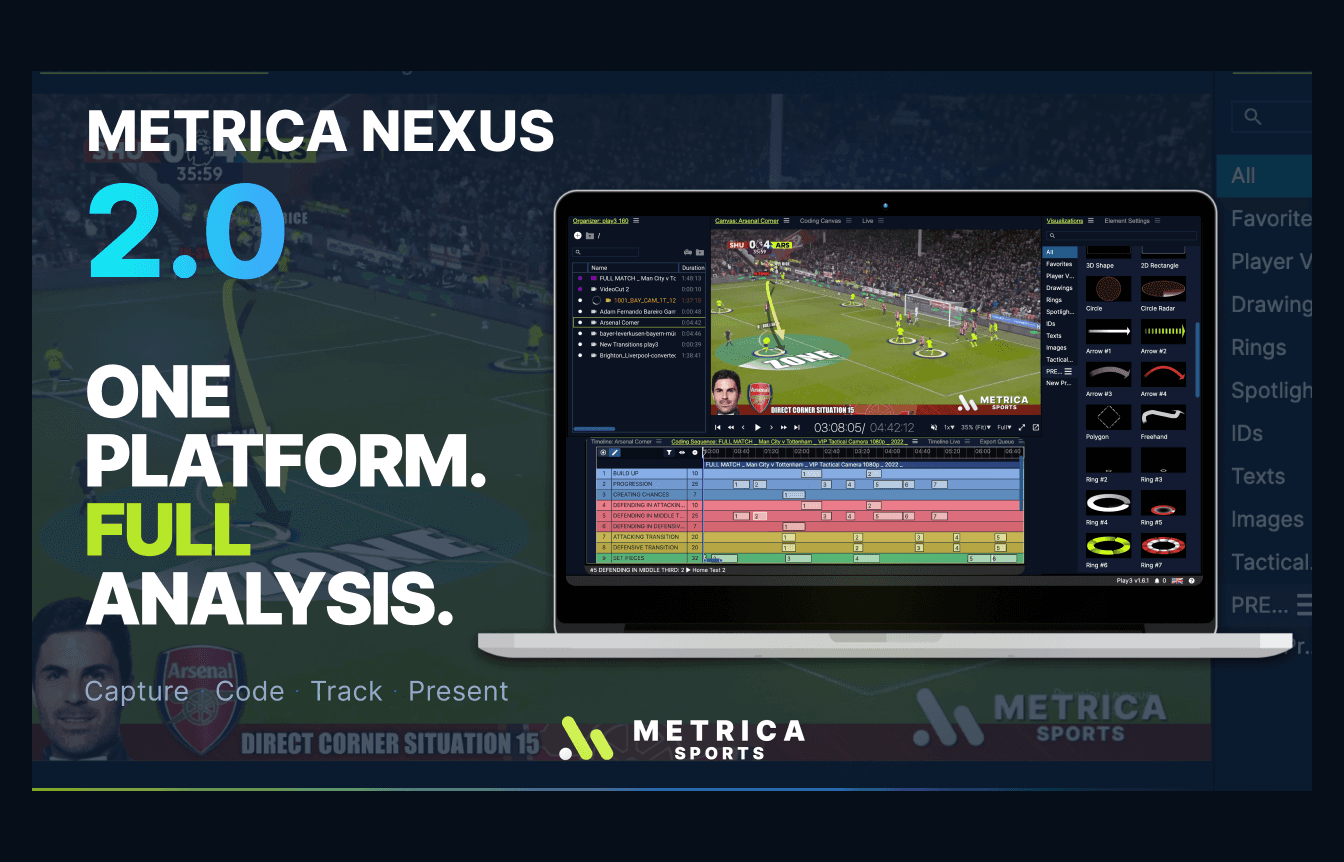
¡Este es el que tanto nos venían pidiendo! Te presentamos el primer tutorial completo de Metrica Nexus 2.0, donde cubrimos cada funcionalidad en un único video paso a paso. Ya sea que estés en tu prueba gratuita, seas un usuario activo actualizando a la versión 2.0 o un estudiante que está aprendiendo análisis de rendimiento, esta guía te llevará desde tu primer clip de video hasta una presentación final con calidad de televisión, incluyendo todas las novedades de este lanzamiento, como el analizador de múltiples partidos Nexus Explorer.
¡Dale play para ver la guía completa y luego utiliza los capítulos de abajo para saltar directamente a la función que necesites!
Novedades en Metrica Nexus 2.0
Nexus 2.0 unifica todo el flujo de trabajo de análisis en un único entorno más rápido y flexible. La gran novedad es el Nexus Explorer, un analizador multi-partido que te permite buscar eventos en varios encuentros a la vez. Junto a esto, esta versión perfecciona el Coding Pad, la transmisión en vivo y el envío de información al banco de suplentes con Nexus Mobile, tres modos de tracking (manual, automático y clip completo), telestración avanzada y el Showcase Panel para tus presentaciones en vivo. ¡En este tutorial lo cubrimos todo!
Capítulos del video
Utiliza estas marcas de tiempo para navegar por el tutorial (puedes ajustarlas para que coincidan con tu video publicado definitivo):
0:00 — Primeros pasos: espacio de trabajo, idioma e interfaz flexible
0:48 — Centro de ayuda, atajos de teclado, requisitos de hardware y ajustes preestablecidos
1:15 — Etiquetado rápido: arrastra y suelta un partido completo
2:52 — Registro de eventos y el Coding Pad
4:19 — Importación y filtrado de XML
5:56 — Codificación en vivo y sistemas de cámaras automatizados
7:27 — Nexus Mobile y cómo compartir información al banco
8:05 — Nexus Explorer: análisis de múltiples partidos
9:38 — Telestración y tracking (manual, automático y clip completo)
11:32 — Ajustes preestablecidos, diapositivas y exportación
12:33 — Showcase Panel: presentando en vivo
13:10 — Dónde obtener más información
Primeros pasos: espacio de trabajo, idioma e interfaz
Al abrir la app después de registrarte, puedes crear un nuevo espacio de trabajo o abrir uno existente, además de cambiar el idioma del software en la esquina inferior derecha. Nexus 2.0 cuenta con una interfaz totalmente flexible y basada en pestañas: cada panel, desde las visualizaciones hasta el Coding Pad, se puede arrastrar, mover y organizar en el diseño que mejor se adapte a tu forma de trabajar. Además, todo lo que necesitas está a un solo clic en el Centro de ayuda, incluyendo tutoriales para cada función, una lista completa de atajos, requisitos de hardware, ajustes preestablecidos listos para usar y plantillas para el Coding Pad.
Etiquetado rápido: de un partido completo a clips en segundos
La forma más rápida de empezar es arrastrar y soltar un partido completo y utilizar el etiquetado rápido. Presiona R para grabar un clip y la barra espaciadora para detenerlo, o usa la tecla S para guardar instantáneamente un clip según tu configuración de tiempo previo y posterior. Guárdalo directamente en una carpeta con nombre y muévete por el partido con las teclas de dirección sin esperar a que se cargue la reproducción. El lienzo de video te permite hacer zoom con la rueda del mouse o el trackpad, activar/desactivar el sonido, cambiar la velocidad y la resolución, poner la pantalla completa e incluso separar el video en un segundo monitor.
Codificación y el Coding Pad
Para registrar eventos de un partido, crea una nueva secuencia de codificación, selecciona tu partido y activa el Coding Pad. Diseña códigos, etiquetas, imágenes y conectores, o carga tu propia plantilla y personaliza cada detalle en los ajustes del elemento, desde la escala y el color hasta la tipografía, el contador y el atajo de teclado. Elige un modo de registro (clic para iniciar y detener) o el código de guardado instantáneo "Saving Time", luego pasa de Editar a Grabar y codifica post-partido a tu propio ritmo. Cada código aparecerá en la línea de tiempo, donde podrás revisarlo, ver sus detalles y añadir notas.
Importación y filtrado de XML
¿Ya tienes datos de proveedores? Importa un XML de cualquier proveedor y verás todo el partido etiquetado al instante. Filtra de forma eficiente con atajos de teclado: Command + clic derecho para seleccionar una fila entera de eventos, y Command + flechas arriba/abajo para moverte por la selección uno a uno. Guarda los clips clave en tu organizador con el botón S, crea una carpeta específica como "Presentación Final" y pule tu selección recortando, extendiendo o fusionando eventos directamente en la línea de tiempo.
Codificación en vivo y Nexus Mobile
La codificación en vivo sigue la misma dinámica que el análisis post-partido, solo cambia el inicio. Desde el Live Canvas, abre los Ajustes en Vivo para ver las conexiones disponibles. Nexus es compatible con sistemas de cámaras automatizados (como Veo, Spiideo, Hudl y Focus), fuentes URL e incluso conexión inalámbrica de iPhone a MacBook. Elige tus ajustes de codificación, inicia la grabación y carga tu Coding Pad como de costumbre.
Con la conexión móvil activada y la app Nexus Mobile instalada en un teléfono, tableta o laptop, tu transmisión comenzará automáticamente y podrás compartir códigos específicos con el banco de suplentes para que cualquiera conectado a la misma red vea esos eventos en tiempo real.
Nexus Explorer: analiza varios partidos a la vez
La gran estrella de la versión 2.0. El Nexus Explorer reconoce automáticamente cualquier XML que hayas importado y te permite arrastrar múltiples videos y archivos de datos. Ve al Event Explorer para buscar en varios partidos a la vez: filtra por jugador, por etiqueta y por tiempo (desde/hasta), previsualiza cualquier clip y expórtalo o añádelo directamente a una lista de reproducción. Diseña tu presentación final con momentos de distintos partidos, luego minimiza o cierra el Explorer y tendrás tu nueva carpeta lista para usar. También puedes abrir aquí tus espacios de trabajo de secuencias de codificación existentes, reuniendo toda la información en un solo lugar.
Telestración y tracking
Y ahora viene la parte más divertida: la telestración. Según tu plan, tendrás acceso a distintos niveles de tracking:
Tracking manual: define al menos cuatro puntos de referencia en el campo, o reproduce y pausa para seguir a un jugador, activando anotaciones 3D y espaciales como distancia y velocidad.
Tracking automático: elige una anotación y a los jugadores, y deja que la IA haga el seguimiento por ti.
Tracking de clip completo: con un solo clic se realiza el seguimiento de todo el campo y de cada jugador, detectando los equipos para aplicar anotaciones tácticas avanzadas como áreas de bloque, líneas de fuera de juego y radares de campo en 3D.
Cada anotación es totalmente personalizable: escala, radio, unidades, grosor, color, perspectiva... y cualquier estilo que te guste lo puedes guardar con un clic derecho como ajuste preestablecido para reutilizarlo al instante en otros proyectos.
Presentación y exportación
Dale el toque final a tu presentación añadiendo diapositivas (importa tus propias imágenes o descarga plantillas desde el Centro de ayuda). Cuando termines, exporta toda la carpeta como un contenedor para compartirlo con tu cuerpo técnico y jugadores, o como video (en clips separados o en un solo archivo), con tus propias descripciones y ajustes de video, procesándose en segundo plano a través de la cola de exportación.
Presentando en vivo con el Showcase Panel
Para las charlas técnicas en el vestuario o sala de video, el Showcase Panel reproduce tu análisis directamente desde el software con un conjunto de anotaciones exclusivo para el directo. Destaca situaciones de juego, usa la cámara lenta, pausa los tiempos y añade anotaciones tácticas que desaparecen en cuanto le das a reproducir. Haz zoom para mostrar detalles específicos durante la charla y guarda tus anotaciones favoritas en tus ajustes preestablecidos de showcase para lograr una exposición siempre profesional.
Sigue aprendiendo
Este tutorial es tu mapa para dominar Metrica Nexus 2.0, pero hay mucho más por descubrir. El Centro de ayuda documenta cada función en video y texto para que puedas profundizar tanto como quieras.
Preguntas frecuentes
¿Qué es Metrica Nexus 2.0?
Metrica Nexus 2.0 es la última versión del software de análisis de rendimiento todo en uno de Metrica Sports, que incorpora el analizador multi-partido Nexus Explorer junto con herramientas perfeccionadas de registro, tracking, telestración y presentación en vivo.
¿Qué es el Nexus Explorer?
El Nexus Explorer es un analizador multi-partido que te permite buscar y filtrar eventos en varios partidos a la vez (por jugador, etiqueta o tiempo) y transformar los resultados en listas de reproducción y presentaciones en cuestión de segundos.
¿Funciona Metrica Nexus en Mac y Windows?
¡Sí! Metrica Nexus se ejecuta tanto en macOS como en Windows, y la app Nexus Mobile está disponible para iOS y Android.
¿Necesito un hardware especial para usar Metrica Nexus?
No. Nexus es independiente del hardware, todo lo que necesitas es tu archivo de video. También se conecta a sistemas de cámaras automatizados para capturar en vivo si dispones de ellos.
¿Qué modo de tracking debería utilizar?
Depende de tu plan: tracking manual para un control absoluto, tracking automático para que la IA siga a los jugadores seleccionados, y tracking de clip completo para analizar todo el campo y a todos los jugadores con un solo clic.