Nexus Live
Nexus Live is an add-on for Metrica Nexus that connects Nexus Desktop with mobile devices, allowing analysts and coaches to capture video, share events, stream feeds, and send clips between devices in real time.
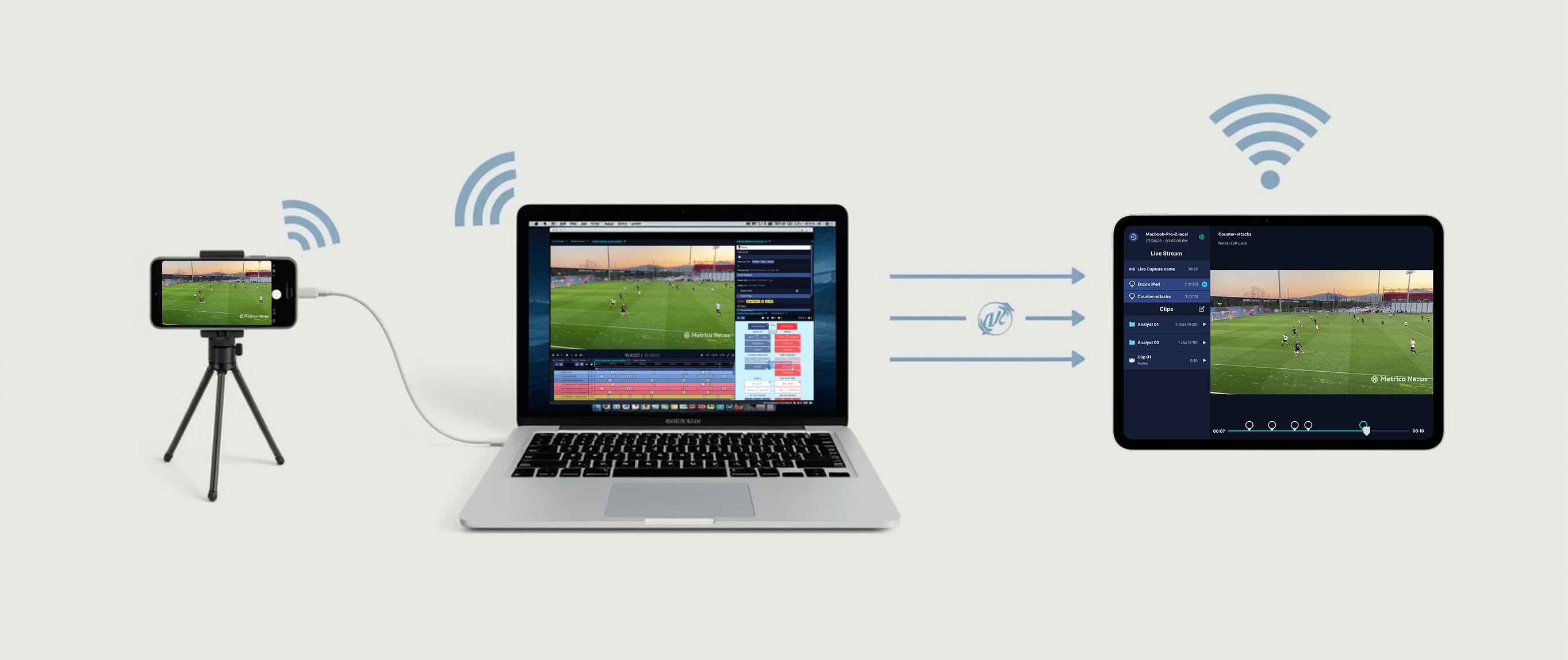
Introduction to Nexus Live
Whether you are working live during a match or reviewing a session after training, Nexus Live allows your analysis workflow to extend from the desktop to the sideline.
With Nexus Live, mobile devices become powerful companions to your Nexus workspace, enabling seamless collaboration between analysts and coaching staff.
What You Can Do with Nexus Live
Once connected, Nexus Live enables several workflows between Nexus Desktop and mobile devices:
• Capture live video directly into Nexus
• Share analysis events between devices in real time
• Stream live video feeds to Nexus Desktop
• Send clips from Nexus Desktop to mobile devices for review
Each of these workflows is explained in dedicated tutorials.
Supported Devices
Nexus Live works with the Nexus Mobile app, available on:
• iPhone
• iPad
• Android phones
• Android tablets
Mobile devices can connect directly to Nexus Desktop to exchange video, events, and analysis information.
Requirements
Before starting, make sure you have:
• An active Nexus Live add-on
• Nexus Desktop running on your computer
• The Nexus Mobile app installed on your device
• Both devices connected to the same Wi-Fi network
Step 1: Enable the Mobile Connection
Open a workspace in Nexus Desktop.
Go to the Mobile tab in the top header.
By default, the connection is locked. Click Enable to activate the connection.
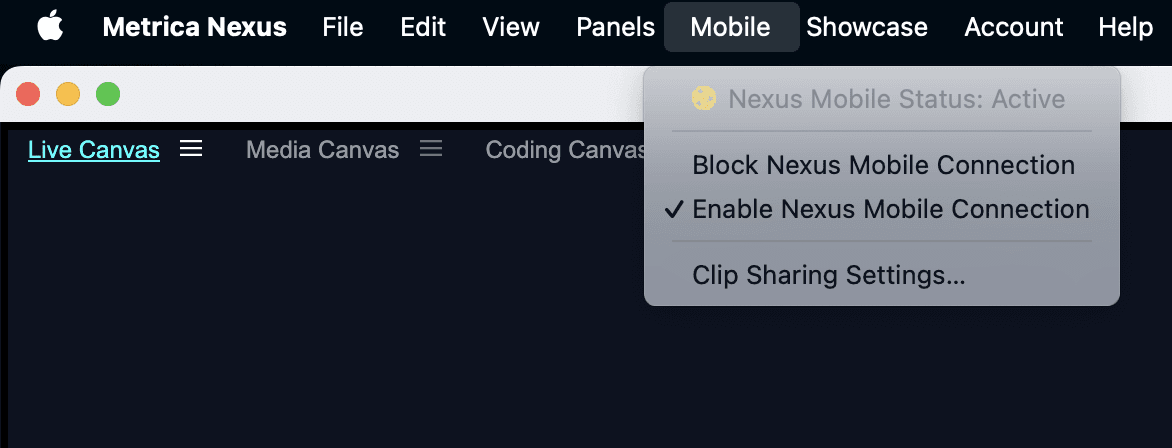
Once enabled, your Nexus Desktop session becomes visible to mobile devices running Nexus Mobile.
Step 2: Connect from Nexus Mobile
Open the Nexus Mobile app on your device.
Log in with the same account you use for Metrica Nexus.
Your active Nexus Desktop session should appear in the device list.
Tap the session to connect.
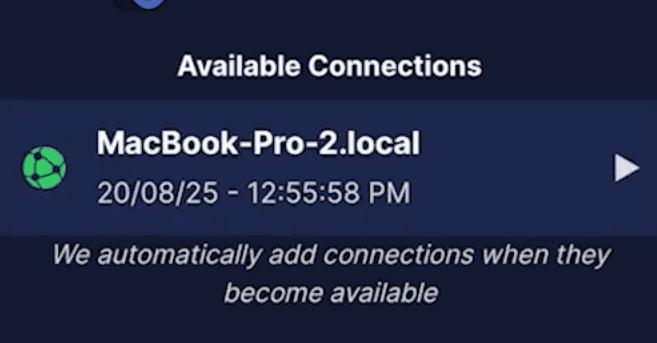
When connected, the mobile device becomes linked to your Nexus workspace.
Managing the Connection
While the connection is enabled, Nexus Desktop and Nexus Mobile can exchange video, clips, and analysis data.
When you finish your session, you can lock the connection again from the Mobile tab in Nexus Desktop.
If Nexus Desktop is closed, the connection automatically resets to locked for security.
Next Tutorials
Once your devices are connected, you can explore the different Nexus Live workflows:
Live Capture
Capture live video feeds from mobile devices, cameras, or network sources.
Clip Sharing
Send analyzed clips from Nexus Desktop to mobile devices for quick review on the sideline.
Live Streaming
Stream video feeds between devices during matches or training sessions.
Event Sharing
Share analysis events instantly between Nexus Desktop and Nexus Mobile.