Nexus Explorer
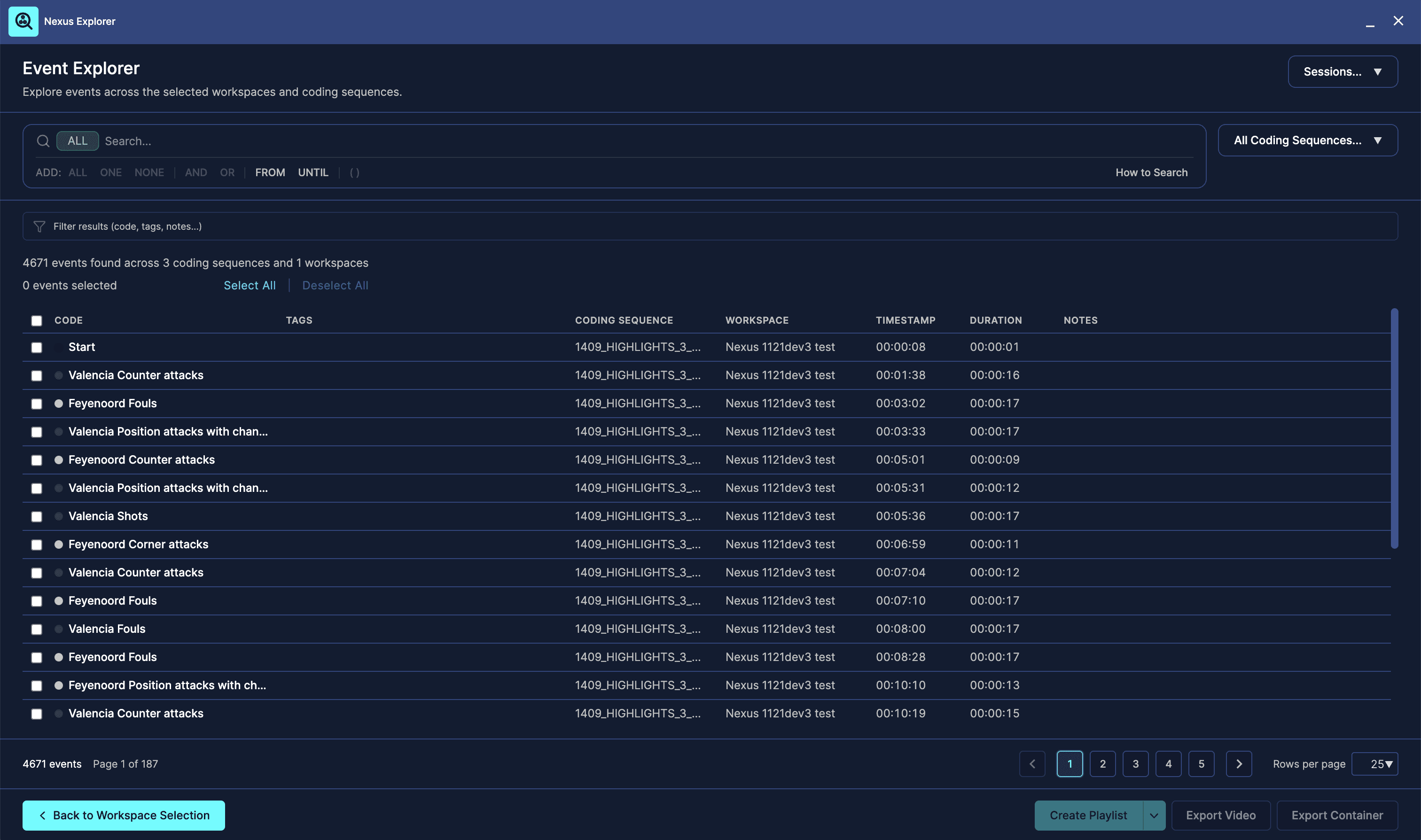
The Event Explorer displays all events from the selected coding sequences in a table.
Each row represents one event.
The table includes information such as:
Code
Tags
Coding sequence
Workspace
Timestamp
Duration
Notes
This allows you to scan events across multiple games or sessions without switching between timelines.
Searching events
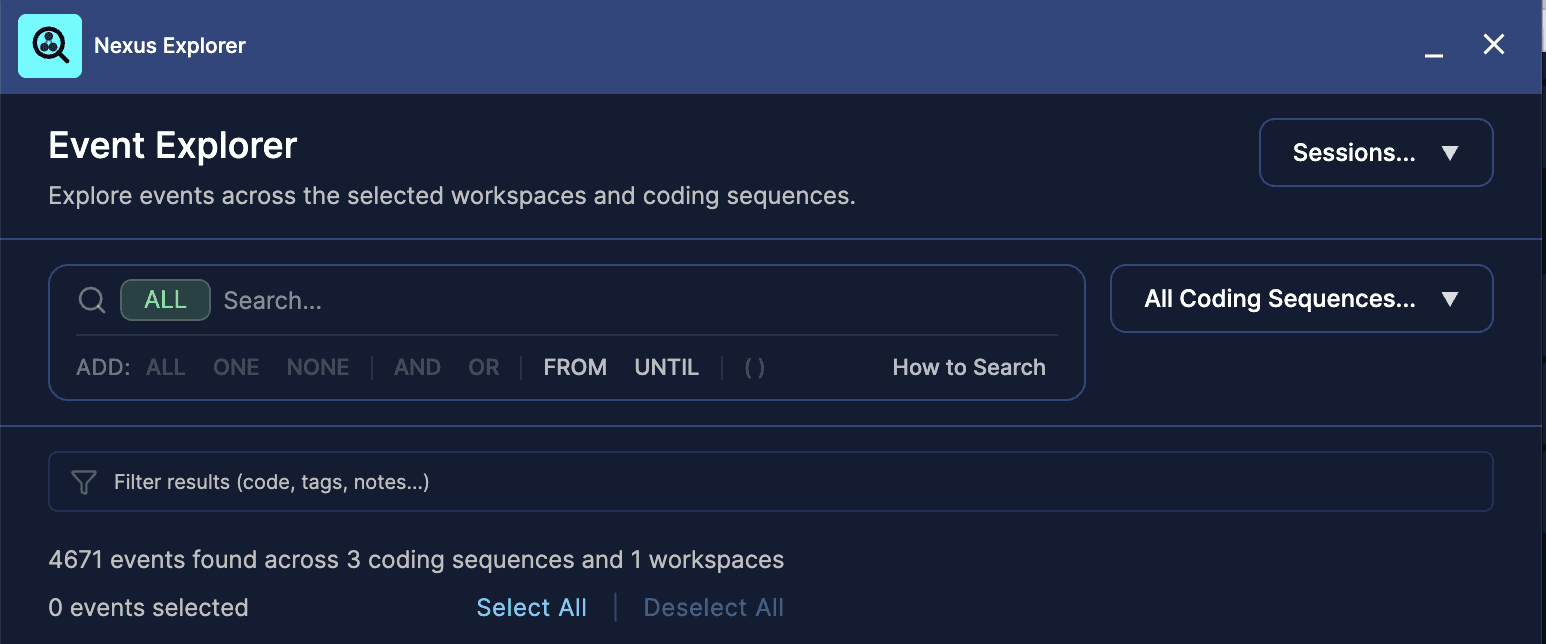
Use the main search bar to search across codes, tags, and notes.
You can build searches using operators.
ALL means the event must contain all selected items.
ONE means the event can contain any of the selected items.
NONE excludes events containing selected items.
AND combines conditions where both must be true.
OR combines conditions where either can be true.
Parentheses can be used to group conditions and control how the search is evaluated.
For example, you can search for events involving one of several players and also requiring a specific tag, such as ball receiving.
Filtering results
Below the main search, there is a filter field.
This is useful when your search returns many results.
The filter does not change your main search. It only narrows down the results already shown in the table.
You can filter by text found in:
Codes
Tags
Notes
This is useful for quickly focusing on a player, action, or keyword inside a larger result set.

Filtering by Coding Sequence
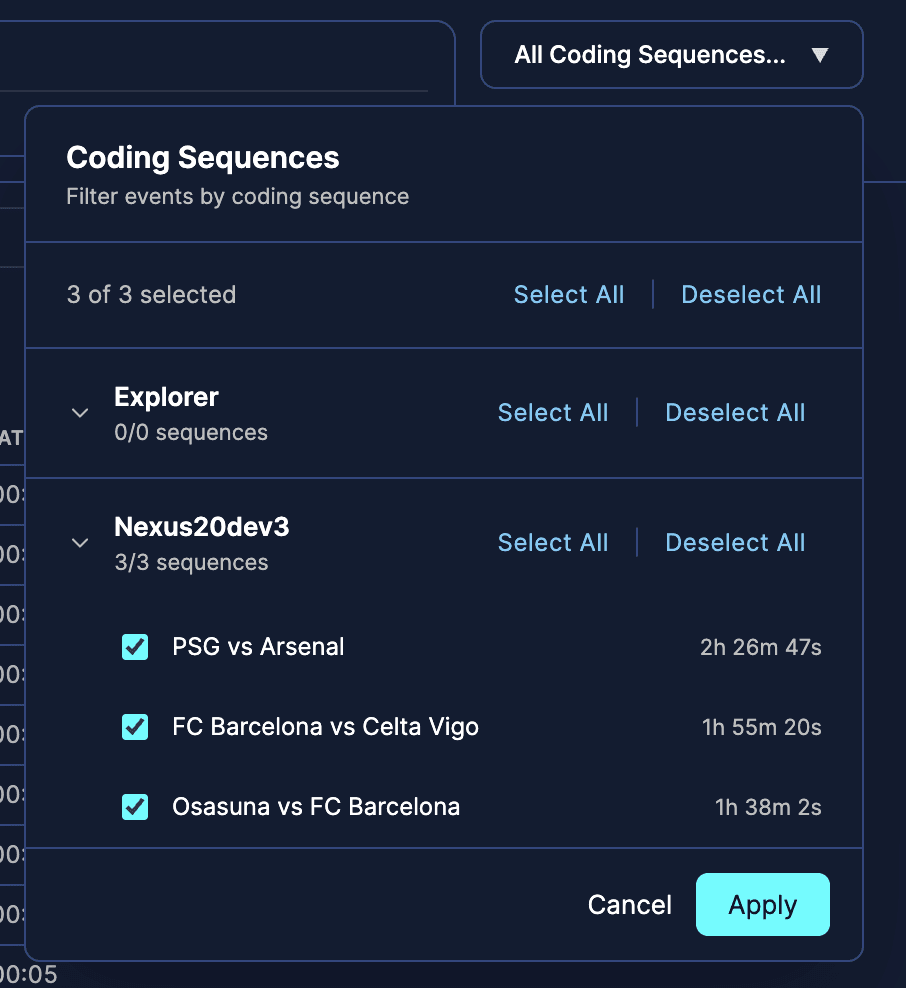
The All Coding Sequences menu lets you control which coding sequences are included in the current results.
You can open this menu from the top-right area of the Event Explorer.
From there, you can select or deselect coding sequences without going back to the first screen.
Click Apply to update the results.
Reviewing events
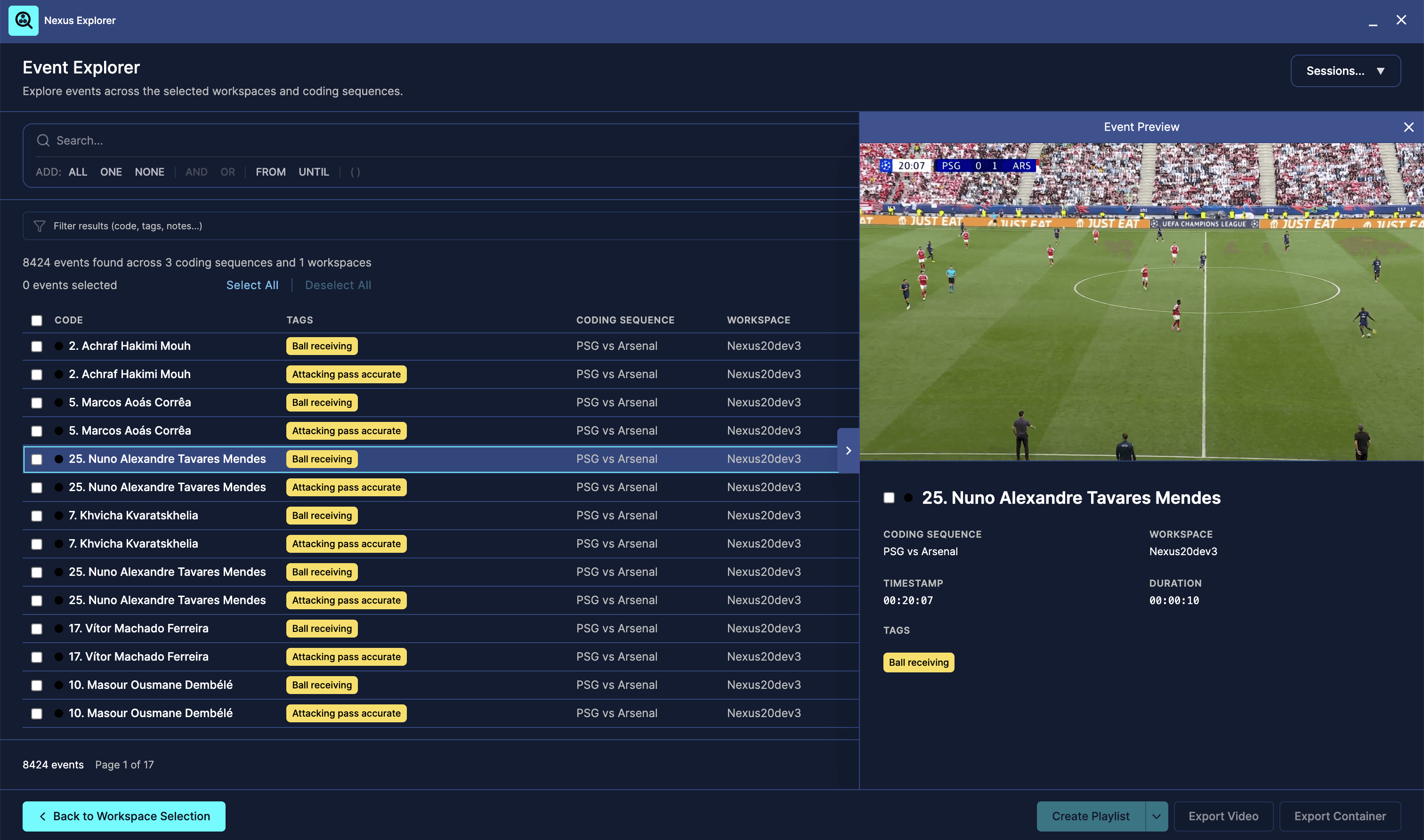
Click an event to review it.
The video player allows you to watch the selected event and understand its context.
You can move through events, review the video, and decide which moments are useful.
The currently active event should be easy to identify in the table while reviewing.
Selecting events
Use the checkboxes to select events.
Selected events can later be used to create playlists or exports.
You can select individual events or use Select All to select results on the current page.
The interface shows how many events are currently selected.
Pagination
If there are many results, Nexus Explorer uses pagination.
You can move between pages and choose how many rows to show per page.
This keeps the table manageable, even when working with hundreds or thousands of events.

Creating a playlist
After selecting events, click Create Playlist.
This allows you to send selected events back into your workspace as a playlist.
Depending on the available options, you can create the playlist in the current folder or choose where to place it.
This is useful for building review playlists after searching across several matches.

Exporting selected events
You can export selected events as:
Video
Container
This allows you to share clips externally or continue working with them in other workflows.
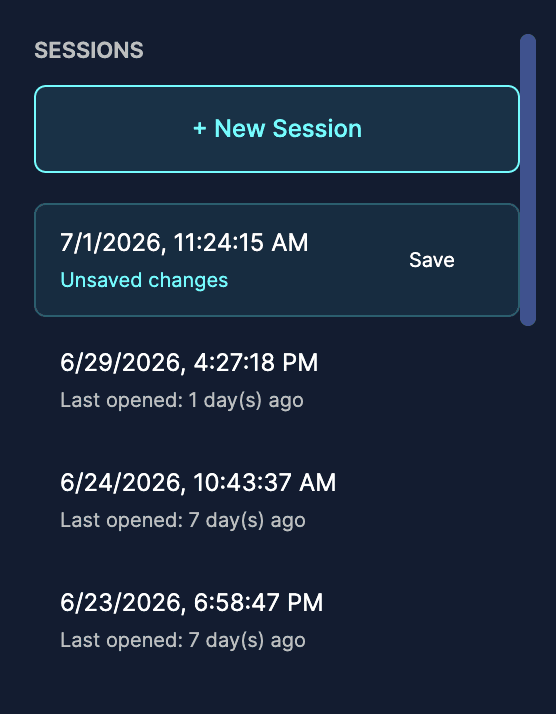
Sessions
Nexus Explorer supports sessions.
A session stores your Explorer work so you can return to it later.
A session can include:
Loaded workspaces
Selected coding sequences
Search query
Selected events
You can create a new session, save your current session, or return to a previous session.
This is useful when you need to work on multiple analysis tasks, for example preparing one search for a coach and then returning to your original analysis.
Example workflow
A common workflow could be:
Open a workspace containing several coded matches.
Open Nexus Explorer.
Select the coding sequences you want to analyze.
Continue to Event Explorer.
Search for a specific action, player, tag, or note.
Review the matching events.
Select the best moments.
Create a playlist or export the selected events.
Save the session if you want to return to it later.