Nexus Live
Clip Sharing allows you to send clips from Nexus Desktop directly to mobile devices using Nexus Mobile. This makes it easy to review key moments on the sideline or share analysis with coaches and staff during or after a session.
Clip Sharing Between Nexus Desktop and Mobile
Clip Sharing exports selected clips from Nexus Desktop and sends them to connected mobile devices. The clips can include video only or video with annotations and telestration, depending on the export settings you choose. Once shared, the clips can be viewed instantly on Nexus Mobile with simple playback controls.
Step 1: Configure Clip Sharing Settings
Before sending clips, you can configure how the clips will be exported from Nexus Desktop.
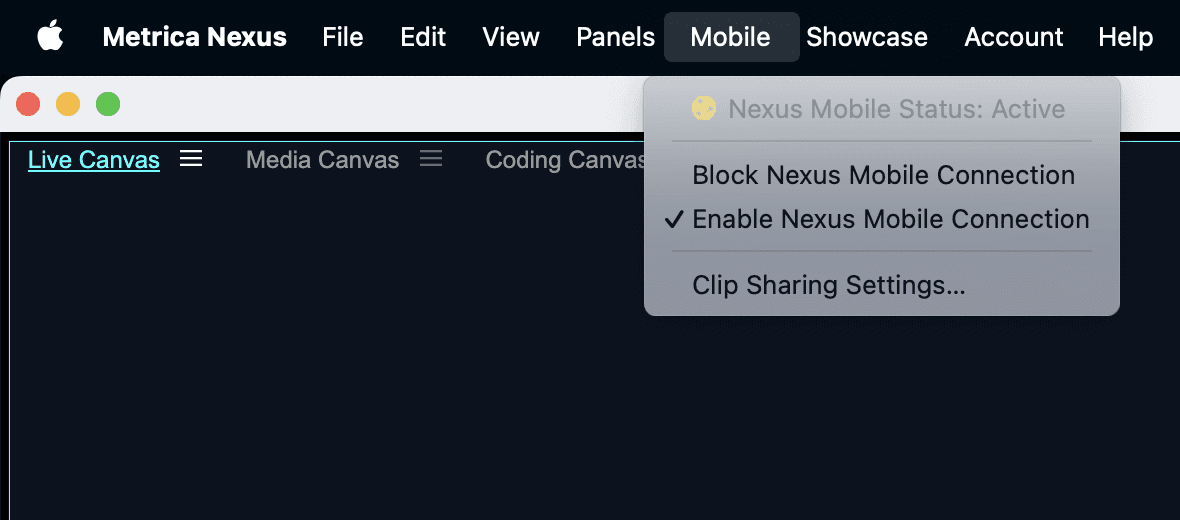
Open Clip Sharing Settings to define the export format and video parameters.
Available options include:
• Video only or video with annotations
• Include clip descriptions
• Resolution and frame size
• Frame rate
• Video quality
• Audio inclusion
Example configuration: 1080p, 25fps, medium quality, with audio.
Step 2: Share Clips from Nexus Desktop
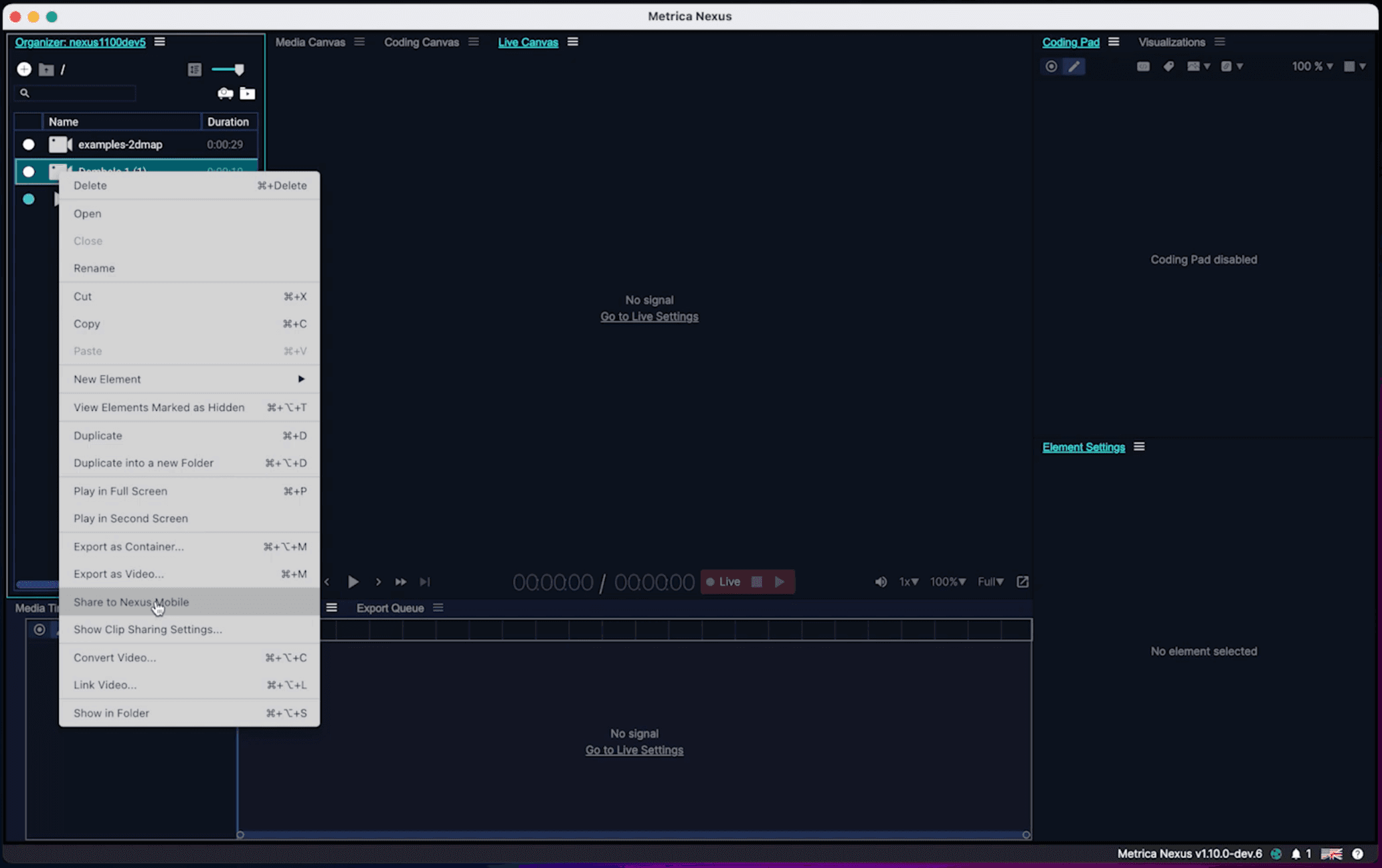
In the Organizer, select one or more clips.
Right-click the selection.
Choose Share to Nexus Mobile. Nexus will process the clips in the background and send them to the connected mobile device.
Step 3: View Clips on Nexus Mobile
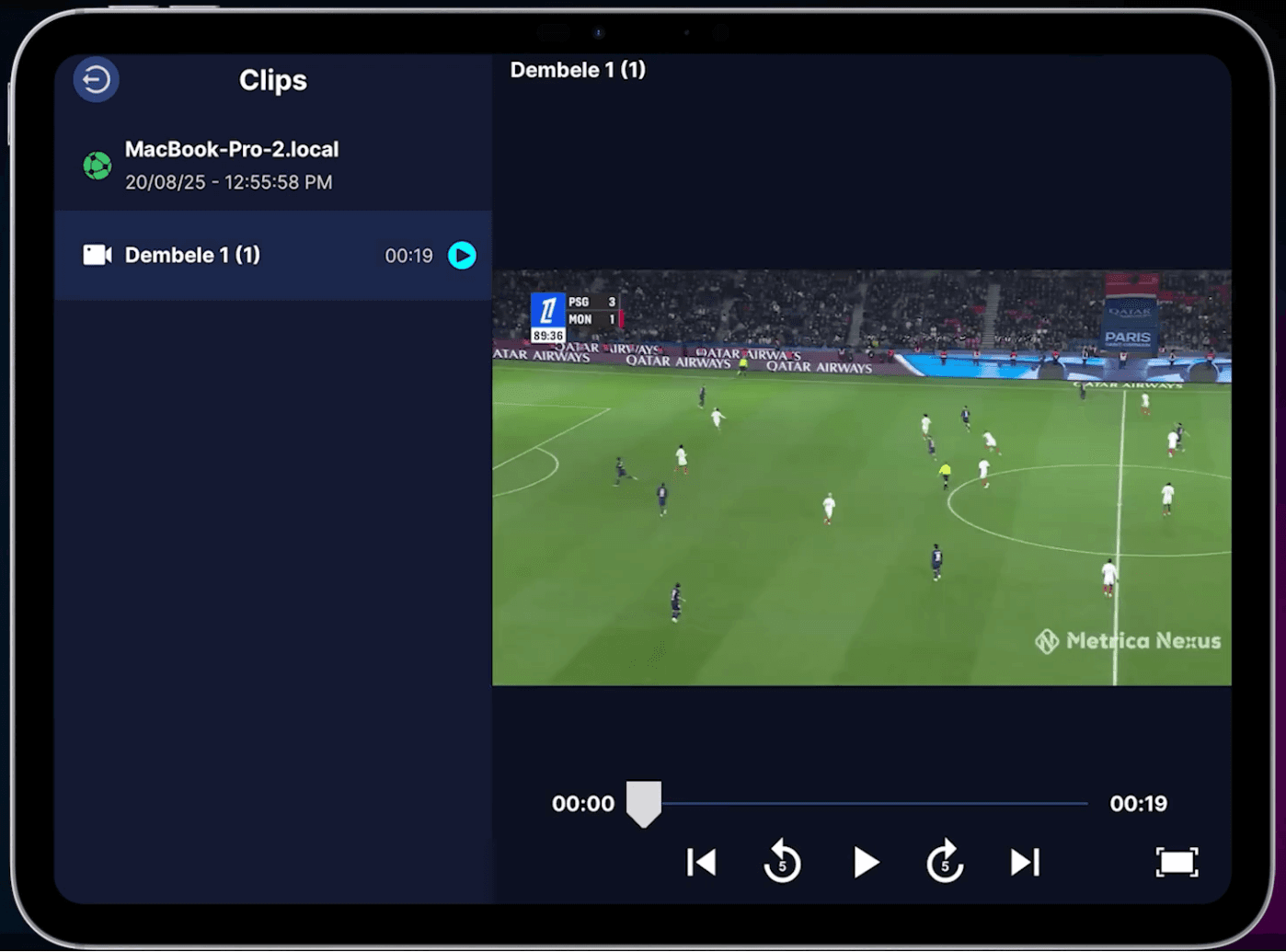
Once the clips are processed, they will appear in the Nexus Mobile app.
On your mobile device you can:
• Tap a clip to play it in full screen
• Swipe left or right to move between clips
• Skip forward or backward 5 seconds
• Swipe left on a clip to delete it
Tip: Share Entire Folders
You can also share complete folders from the Organizer. This allows you to send multiple clips organized in the same structure used in Nexus Desktop.